


Samsung Smart Switch Mobile
3.922.49K Reviews
App Specs
- Version
- 3.7.72.6
- Updated On
- License
- Free
- Downloads
- 1,000,000,000+
- Developer
- Samsung Electronics Co., Ltd.
- Categories
- Tools
- Platform
- Android, iOS
Screenshots
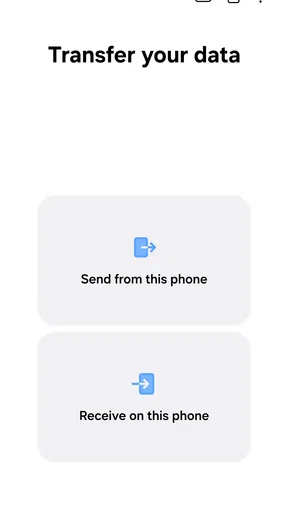
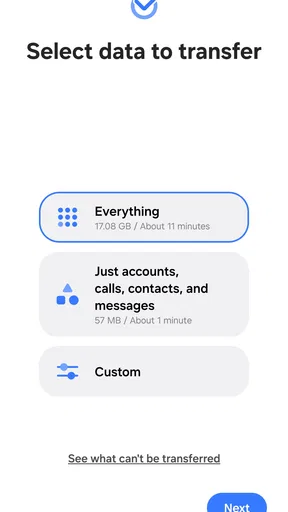
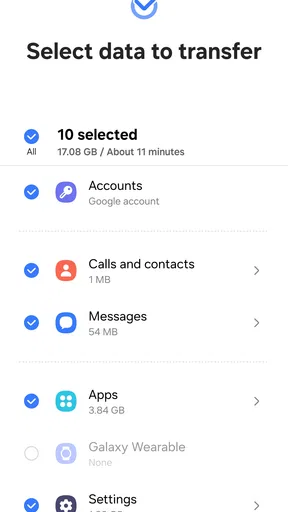
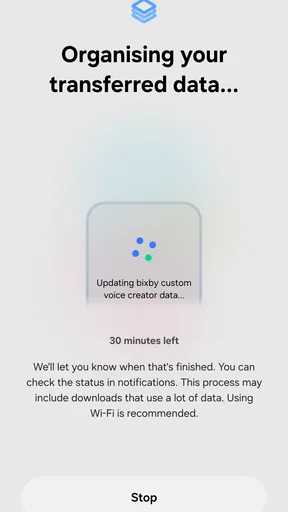
 Analysis by AppCompare
Changing phones sounds exciting until I remember all the small things tied to the old one: familiar settings, photos, conversations, and the apps I use every day. Samsung Smart Switch Mobile is built for that awkward in-between moment. Its strongest idea is simple: help move a phone’s contents to a Samsung device without making the owner manage every item by hand. I see it as a practical migration tool, not a general-purpose backup service, and that distinction matters when deciding whether it fits your needs.
A focused tool from Samsung
Made by Samsung Electronics Co., Ltd., this free tool belongs to the utilities side of mobile apps. It has been available since April 17, 2013, and its current version is 3.7.71.16, for devices running Android 6.0 or later. Its 3.8 average from around 514,000 ratings suggests a widely used app that does not work perfectly for everyone. That feels about right for a tool whose results depend partly on the phones involved and the way they connect.
With more than a billion installs, Smart Switch is a familiar part of moving into Samsung’s ecosystem. It is rated for Everyone, so its role is straightforward rather than entertainment-focused: help people transfer content during a device change. Samsung’s own guidance also points out that if you cannot download it, you can open Smart Switch from a device’s Settings menu. That is a useful thing to check before assuming the transfer process is blocked.
Guides and Analysis on Samsung Smart Switch Mobile
Setting Up and Getting Started
First off, getting Samsung Smart Switch Mobile up and running is super easy. You just download the app from the Play Store or App Store, depending on your device, and follow the straightforward setup process. What I loved was how intuitive it felt—no tech jargon or complicated steps. Just a few taps and you're ready to go.
Transfer Options Galore
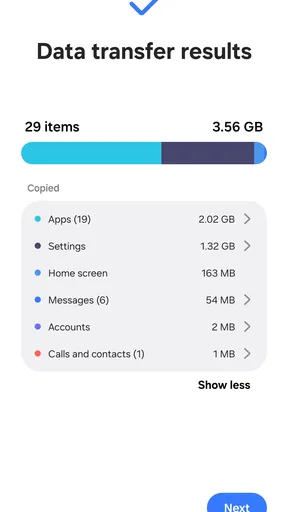
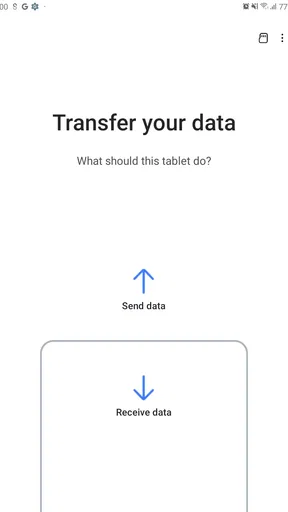
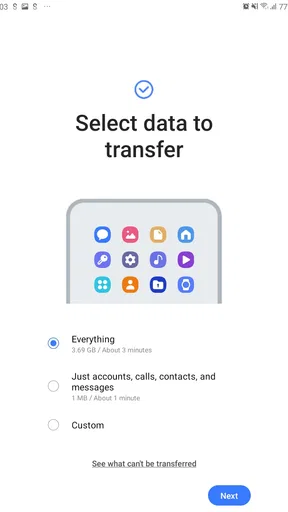
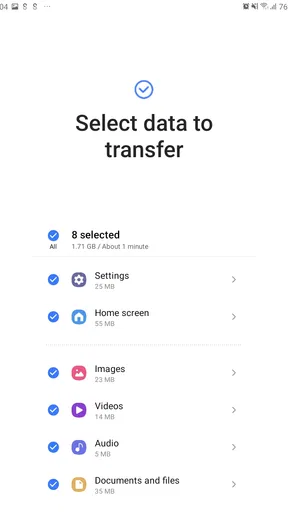
Once you're in the app, you have a couple of options to transfer data: wirelessly, via USB cable, or using a PC. I went with the wireless method because, let's face it, who wants to deal with cables? The app quickly detected my old device, and in just a few moments, I was selecting what data I wanted to transfer. You can move photos, contacts, messages, and even apps. It's like packing your entire digital life into a virtual suitcase.
The choice between those routes is more than a convenience preference. Wireless transfer avoids hunting for a compatible cable, but it leaves both phones in use and dependent on a stable connection. A cable is often the calmer choice if you already have the right one and want to avoid a wireless interruption. The PC route makes more sense if you prefer working from a computer or want a separate backup step in your routine. I would choose the method around the situation rather than assume one is always best.
Planning a transfer before you start
My main practical tip is to treat migration as a short project, not a button press. Charge both phones, keep them close if transferring wirelessly, and start when you do not need either device for something urgent. Before beginning, check that the old phone still has the photos, contacts, and messages you expect to bring over; a transfer tool cannot compensate for content that is already missing or stored somewhere else.
Worth Reading Before You Choose

Baby Panda World Brings Quick Play to Modern Phones, but Its Game Library Feels Busy

ESPN’s Live Game View Makes Following Close Games Easier

QuizzLand Review: A Good Fit for Short Trivia Breaks, Not Every Player

Basketball Stars: Multiplayer Is Fast, but Can It Recover When Matches Go Wrong?

WEBTOON Turns Phone Updates Into a Better Reading Routine

Link to Windows Runs on Shared Habits, Not Social Feeds
It also helps to think in terms of what you actually need on the new phone. Bringing everything may feel safest, but a phone change is a rare chance to leave behind apps and clutter you no longer use. Selecting the essentials can make the new device feel more intentional. If you are setting up a phone for a family member, agree on what should move before starting so you do not spend the session sorting through years of accumulated material together.
What transfers do—and do not—mean
Moving an app is not always the same as moving its account, login, or cloud-stored information. I would expect to sign back in to some services and check that important apps are working after the transfer. For anything tied to a separate account, such as a messaging service or a work app, it is sensible to confirm its own transfer or recovery steps before wiping or trading in the old phone.
The same caution applies to personal records that matter beyond everyday convenience. I would check especially carefully for authenticator access, banking apps, work profiles, and files kept in a service outside the phone’s ordinary content. Smart Switch can make a broad move easier, but it should not be treated as proof that every account is ready to use. Keep the old phone available until you have checked the things you rely on most.
Smooth Sailing with User-friendly Features
One of the features that stood out to me was the app's ability to transfer settings and layouts. It was like picking up my old phone and continuing as if nothing changed. Plus, if you're a bit forgetful like I am, there's an option to back up your data to an SD card or your computer, so you never have to worry about losing anything important.
That familiar layout can be a genuine comfort, especially when moving from one Samsung phone to another: the home screen and settings may help the new device feel less like starting from zero. I would still spend a little time checking the result rather than assuming every visual detail or app behavior will match perfectly. Different phones can have different capabilities, and a transferred arrangement is a starting point, not a promise that two devices will behave identically.
The backup option is useful as an extra safeguard, but I would not make it the only copy of irreplaceable files. A backup saved on a computer or removable card is easier to manage if you label it clearly and keep it somewhere you can find later. For photos already stored in a separate cloud library, check that library directly too; a phone-to-phone transfer and a cloud sync are different parts of keeping data safe.
Where Smart Switch fits among alternatives
For someone moving to a Samsung phone, Smart Switch is more directly suited to the job than copying individual folders or reinstalling every app manually. Those approaches can be useful when you want a clean setup or need to move only a few files, but they demand more decisions and leave more room to forget something. A cloud backup may be the better fit if you want your data available across devices over time, while Smart Switch is especially handy for a one-time move between phones.
There is a trade-off: a migration can bring familiar clutter along with familiar settings. If your goal is a fresh start, transfer only what you need and install the rest deliberately. If you are leaving Samsung for a different phone brand, check that destination’s own migration tools first; Smart Switch is most compelling when the new home is a Samsung device, not as a universal manager for every phone you may own.
A realistic upgrade-day workflow
Imagine opening a new Samsung phone after work while the old one still has your contacts, family photos, and daily messages. I would first make sure both devices are charged, choose wireless transfer if I had no suitable cable close by, and select the data I genuinely wanted rather than blindly bringing every old app along. After the move, I would check contacts, recent photos, messages, and the apps I need for the next morning. Only once those checks were done would I consider resetting or handing over the old phone.
That last step is easy to overlook. A transfer can feel complete when the new home screen appears, but the useful test is whether the details you depend on are actually there and usable. Keeping the original phone intact for a little while gives you a chance to notice a missing item and retrieve it without turning an ordinary upgrade into a stressful recovery job.
Perfect for Non-Samsung Devices Too
Now, you might think this app is only for Samsung users, but here's the kicker—it works with non-Samsung devices too! So, if you're jumping ship from another brand, Smart Switch has got your back. The app does a stellar job of making everything compatible and transfers data without a hitch.
That makes it especially appealing if you are moving from another Android phone into a Samsung, because you can use a single guided process instead of rebuilding the phone piece by piece. Still, “works with” should not be read as “every item transfers exactly as it did before.” Different phone makers arrange information and apps differently, and some services keep their data in their own accounts. If a particular item is essential, verify it on the new phone before you let go of the old one.
For an iPhone owner considering a Samsung, I would approach the move with the same practical mindset: decide which material matters most, follow the available transfer prompts, then check the results. The app can reduce the amount of manual copying, but a change between mobile ecosystems can involve different app versions and account setups. If you want to keep using the same services, make sure you can sign in to them independently of the transfer.
When I would choose another approach
Smart Switch is not the right answer for every phone task. If you only need to send one photo, share a document, or move a small set of files, your usual sharing method is likely quicker. If you want a continuing safety net that keeps selected data available across devices, a cloud-based backup may suit that goal better. And if you are not moving to a Samsung phone, the destination device’s own migration process is usually the more relevant place to start.
I would also pause before using any migration app when the old phone is damaged, unreliable, or the only place holding critical information. In that situation, first consider what can be recovered from existing backups or accounts, then plan the transfer around the data that remains accessible. A guided tool is helpful, but it cannot remove the need to protect the source device and verify important results.
And let's not forget the design. The app's interface is sleek and modern, making it a joy to use. It's not just function over form here; Samsung did a great job balancing both.
Final Thoughts
All in all, Samsung Smart Switch Mobile is a lifesaver for anyone looking to make a seamless transition to a new device. It's reliable, user-friendly, and surprisingly comprehensive in its data transfer capabilities. If you're thinking of switching to a Samsung or just want an easier way to migrate your data, this app is definitely worth a try.
So, next time you upgrade your phone, remember that Smart Switch is there to make the process as painless as possible. It's like having a tech-savvy friend guiding you through the transfer, minus the awkward small talk.
My recommendation is strongest for people setting up a Samsung phone who want a guided way to bring familiar material with them, especially if they would otherwise be tempted to copy everything manually. I would skip it for a tiny one-off file transfer, a move away from Samsung, or a situation where a cloud backup or a clean setup better matches the goal. Used with a little preparation—and followed by a careful check of accounts and important files—it can take much of the tedium out of changing phones without pretending that every detail of a digital life moves automatically.
Pros
- Easy data transfer between devices.
- Supports a wide range of file types.
- User-friendly interface for all ages.
- No internet required for transfer.
- Compatible with multiple platforms.
Cons
- Limited functionality on non-Samsung devices.
- Occasional connectivity issues.
- Some data types may not transfer.
- Requires both devices to be nearby.
- May not support older device models.
FAQs for Samsung Smart Switch Mobile
What is Samsung Smart Switch Mobile and how does it work?
Samsung Smart Switch Mobile is an application designed to help users seamlessly transfer data from an old phone to a new Samsung device. It supports various types of data, including contacts, photos, music, and apps. The app works via a wireless connection, USB cable, or computer, making it versatile and user-friendly.
Is Samsung Smart Switch Mobile compatible with all devices?
Samsung Smart Switch Mobile is compatible with most smartphones, including both Android and iOS devices. However, it's important to note that some older models or specific brands may have limitations. It's always best to check compatibility on the Samsung website or directly within the app before initiating the transfer process.
What types of data can I transfer using Samsung Smart Switch Mobile?
With Samsung Smart Switch Mobile, you can transfer a wide array of data types. This includes your contacts, messages, photos, videos, music, calendar events, and even apps. However, some app-specific data might not transfer, especially if the app is not available on Samsung devices or has platform-specific restrictions.
Are there any costs associated with using Samsung Smart Switch Mobile?
Samsung Smart Switch Mobile is a free application available for download on both Android and iOS platforms. There are no hidden charges or in-app purchases required to use the app's features. Users can simply download the app and start transferring their data without any cost.
How secure is the data transfer process with Samsung Smart Switch Mobile?
Samsung Smart Switch Mobile prioritizes user data security during the transfer process. The app uses secure connections to ensure that your information is transferred safely. Additionally, no data is stored on external servers, meaning your personal information remains private throughout the process. It's recommended to follow best practices, such as using secure networks when transferring data.


